




Games Like Desktop Muse
She doesn’t just sit there. Her expressions and movements change with what you do. See how she reacts throughout your day.
Top matches
Match strength key:80+65+50+<50
Desktop Muse
SteamAbout Desktop Muse
Spend Every Day on Your PC Together.
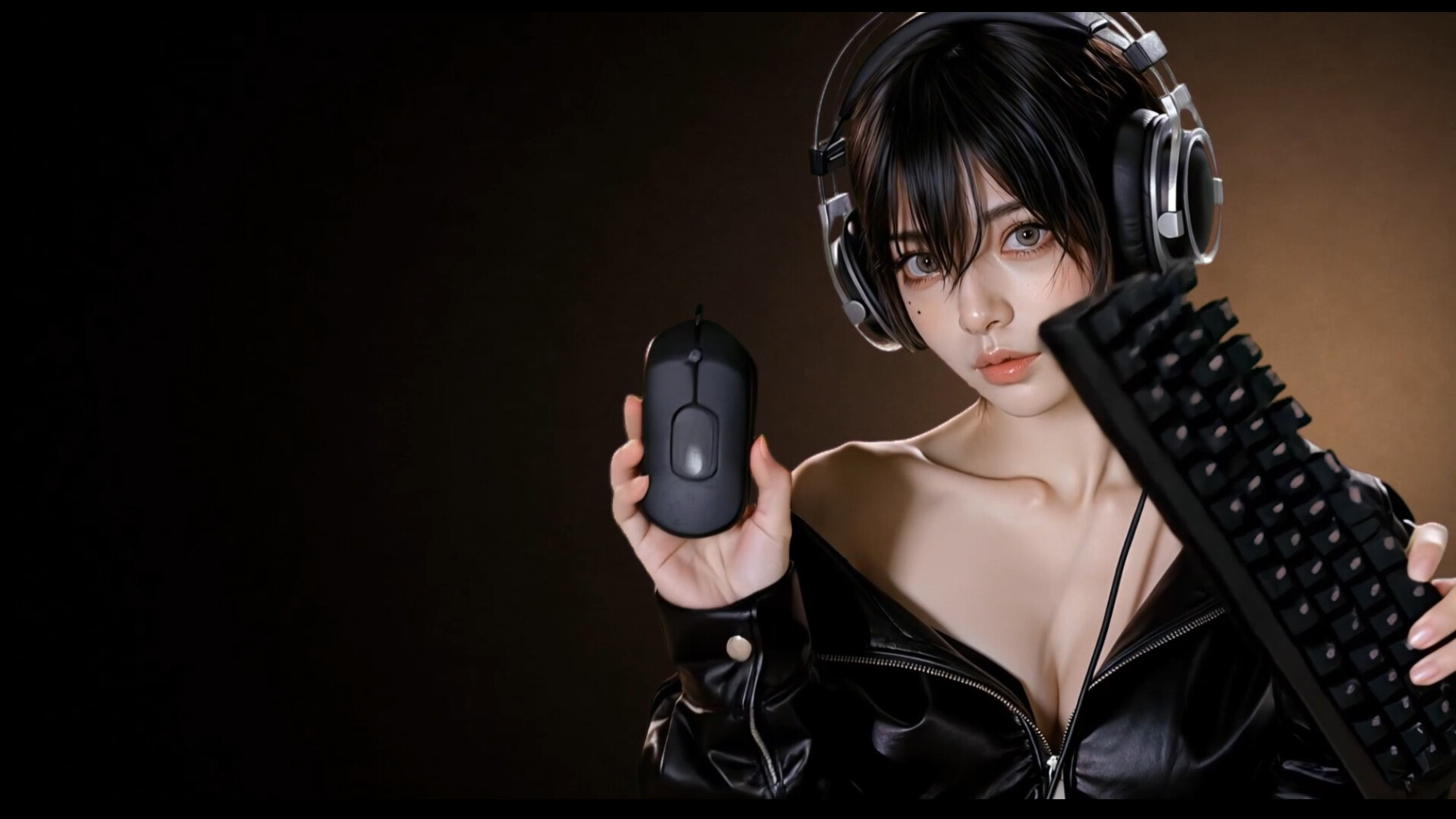
Desktop Muse is more than just a character on your desktop. She notices what you're doing and responds to your daily PC activities with different animations. She can also understand what you say, check your schedule, and help with supported everyday computer tasks. A desktop companion that's truly there with you while you use your PC.

Alive on Your Desktop
Desktop Muse currently features more than 50 animations, with multiple variations for certain situations.
Ren responds in her own way depending on what you're doing. For example:
When you play a game, she gets into gaming mode too.

When you watch a video, she'll stay by your side and watch along.

When a download finishes, she'll let you know right away.

If you have unread messages, she'll remind you not to forget about them.

You don't need to constantly interact with her.
Just use your PC as usual, and you'll gradually discover more sides of her.
She Understands What You Want to Do

After connecting a supported desktop AI tool, you can communicate directly with Ren through text or voice.
She can check your Google Calendar and remind you about upcoming events, look up the weather, help draft messages, play music, and perform supported computer actions.
*You can connect Google Calendar from Settings. Right-click the Desktop Muse icon in the system tray and select Settings. On the Settings page, select Calendar, then choose the Google account you want to connect.
PC control features such as opening and moving windows have also been made more stable. When you launch a Steam game, Ren will also enter the corresponding Game Mode.
Currently supported:
OpenAI Codex / Anthropic Claude Code / Doubao / DeepSeek
*Because the Agent features of Doubao and DeepSeek are not yet fully available, Ren may behave inconsistently when connected to either service. These features are still being actively improved, and there is plenty of room for further refinement. We’ll continue improving their stability and usefulness based on real-world usage.
Desktop Muse will continue to add more animations, interactions, and useful Companion features.
Not just staying on your desktop. Using your PC together with you. Desktop Muse — Your Desktop Companion
AI Companion Setup
Steam data © 2026 Valve Corporation. Trademarks are property of their respective owners.
All matches
Similar games to Desktop Muse
Finding similar games…